
Download Spamfire – Intelligent Anti‑Spam Filter for Mac
Spamfire is a customizable, intelligent anti‑spam filter designed specifically for POP3 email accounts on macOS. Since its introduction in 2005, the tool has amassed nearly one thousand downloads, proving its popularity among Mac users who demand a reliable shield against unwanted messages. The latest version, 2.30, was refreshed on March 21 2007 and brings a suite of Bayesian learning enhancements, refined error handling, and a streamlined status report that keeps you informed about each mail check.
Whether you run the latest macOS release or an older OS X version, Spamfire offers a lightweight, secure solution that occupies far less disk space than many competing internet‑software utilities. Its trial edition lets you explore powerful spam‑filtering capabilities without committing to a purchase, making it an attractive option for both home users and small businesses seeking to protect their inboxes from junk, phishing attempts, and malware‑laden messages. In this review we’ll dive deep into the core features, walk through installation and usage, examine system compatibility, weigh the pros and cons, and answer the most common questions about Spamfire so you can decide if it’s the right tool for your email workflow.
Overview & Core Features of Spamfire
Spamfire positions itself as a smart, adaptive filter that learns from the emails you receive and automatically improves its detection accuracy over time. The application leverages Bayesian analysis—a statistical technique that evaluates the probability of a message being spam based on word patterns and token frequencies. By continuously updating its corpus, Spamfire becomes more precise, reducing false positives and ensuring legitimate mail reaches your inbox.
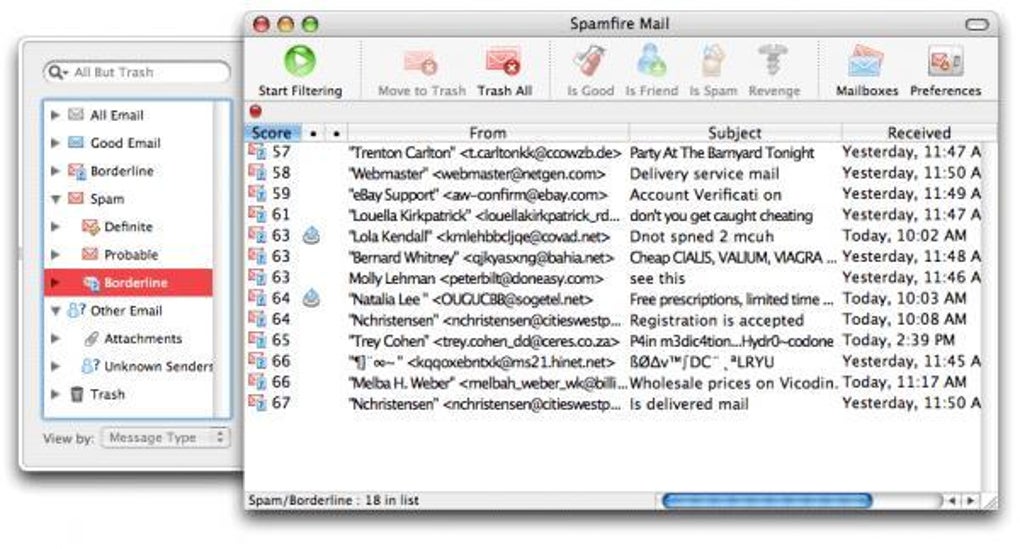
The user interface is intentionally simple: a compact toolbar integrates with your mail client, providing one‑click access to the “Last mail check” status, error notifications, and quick toggles for manual scans. The recent update introduced a dedicated “Bayesian Tools” window, allowing you to reset or prune the filter database. Pruning removes outdated tokens, which can speed up processing and sharpen detection.
Moreover, Spamfire now logs errors that occur during scheduled checks instead of interrupting you with pop‑ups, preserving a smooth user experience.
- Advanced Bayesian filtering with automatic learning and manual pruning.
- Real‑time status bar showing last mail check, errors, and spam statistics.
- Selective error reporting: user‑initiated checks display alerts; scheduled checks log silently.
- Lightweight footprint—uses far less disk space than typical anti‑spam utilities.
- Compatibility with all POP3 email accounts on macOS, including legacy OS X versions.
- Trial version available for free download, with easy upgrade path to full license.
- Multi‑language support limited to English, ensuring clear documentation for US users.
In practice, these features translate into a filter that not only blocks bulk junk but also adapts to evolving spam tactics. Users report a noticeable drop in unwanted mail after just a few days of operation, thanks to the self‑learning engine. The ability to manually prune the corpus is especially valuable for power users who notice occasional misclassifications; a quick reset restores optimal performance without reinstalling the software. Overall, Spamfire delivers a balanced mix of automation and control, catering to both novice and experienced Mac users seeking a dependable anti‑spam solution.
Installation, Usage Instructions, and macOS Compatibility
Getting Spamfire up and running is a straightforward process that can be completed in under ten minutes, even for users with limited technical expertise. Follow these steps to download, install, and configure the filter on your Mac:
- Download the installer: Visit the official Spamfire download page and click the “Download Free Trial” button. The file is a compressed .dmg package sized under 5 MB, reflecting its lightweight design.
- Mount the disk image: Double‑click the .dmg file to open it. A window appears showing the Spamfire application icon and a shortcut to the Applications folder.
- Install the app: Drag the Spamfire icon onto the Applications shortcut. macOS will copy the program to your /Applications directory.
- Launch and grant permissions: Open Spamfire from the Applications folder. The first launch prompts you to allow network access and to add Spamfire to your list of trusted mail filters. Click “Allow” to proceed.
- Configure POP3 accounts: In Spamfire’s preferences pane, click “Add Account” and enter your POP3 server details (host, port, username, password). The software will test the connection and, upon success, begin monitoring incoming mail.
- Set scanning schedule: Choose how often Spamfire should check for new messages—options range from every 5 minutes to a custom interval. For users who prefer manual control, disable automatic checks and use the toolbar button to start scans on demand.
- Fine‑tune Bayesian settings: Open the “Bayesian Tools” window from the main menu. Here you can reset the corpus, prune unnecessary tokens, or adjust sensitivity thresholds to match your tolerance for false positives.
Spamfire is built for macOS and supports both the latest releases and earlier OS X versions dating back to 10.4. The application runs natively, without requiring additional runtimes or virtualization layers, which helps maintain its small memory footprint. Users on macOS Catalina, Big Sur, Monterey, or Ventura will experience the same level of performance as those on legacy systems, provided they have a functional POP3 client (such as Apple Mail or Thunderbird). Because Spamfire interacts directly with the mail client’s incoming server, it does not depend on specific email service providers, making it a versatile choice for corporate environments, personal accounts, and even small‑scale mail servers.
After the initial configuration, Spamfire operates silently in the background, scanning each incoming message before it reaches your inbox. If it identifies spam, the email is moved to a dedicated “Spamfire” folder, where you can review and, if needed, restore misclassified items. The application also logs every scan in a simple text file located in ~/Library/Application Support/Spamfire/logs, which can be useful for troubleshooting or auditing purposes. Should an error occur during a scheduled check, Spamfire records the incident without interrupting your workflow, preserving a clean user experience while still providing administrators with the information needed to resolve issues.
Pros and Cons (Including Frequently Asked Questions)
Pros
- Highly accurate Bayesian filtering that improves over time.
- Very low system resource usage—ideal for older Mac hardware.
- Intuitive interface with clear status reporting.
- Free trial version allows full feature evaluation before purchase.
- Robust error‑logging that avoids disruptive pop‑ups during scheduled scans.
Cons
- Limited to POP3 accounts; does not natively support IMAP or Exchange.
- English‑only interface may be a barrier for non‑English speakers.
- Last official update was in 2007, which may raise concerns about long‑term support.
- No built‑in webmail integration; works only with desktop clients.
- Full license requires a one‑time purchase; no subscription model.
Frequently Asked Questions
Is Spamfire compatible with the latest macOS versions?
Yes. Spamfire runs on macOS Ventura, Monterey, Big Sur, Catalina, and earlier OS X releases. It is a native macOS application and does not require additional runtimes.
Can Spamfire filter IMAP accounts?
Spamfire is designed for POP3 mailboxes only. Users with IMAP or Exchange accounts will need a different solution or must configure a POP3 bridge.
How does the Bayesian pruning feature improve performance?
Pruning removes rarely used tokens from the filter’s database, reducing its size and speeding up the classification algorithm. Regular pruning keeps the filter responsive, especially on older Macs.
Is the trial version fully functional?
The trial edition provides all core features, including Bayesian learning, manual pruning, and status reporting. It is unlimited in time, allowing you to test the software without restrictions before purchasing.
What support options are available after purchase?
Purchasers receive email support from the developer, access to a knowledge base, and eligibility for future updates (though the last recorded update was in 2007).
Conclusion – Should You Download Spamfire?
Spamfire offers a compelling blend of intelligent Bayesian filtering, minimal system impact, and a user‑friendly interface that makes it a solid choice for Mac users who rely on POP3 email accounts. Its free trial allows you to experience the full suite of features—such as the new Bayesian Tools window and comprehensive status reporting—without any upfront cost. While the lack of native IMAP support and the age of the last official update are notable drawbacks, the core spam‑blocking engine remains effective for the majority of typical junk mail. If you are looking for a lightweight, secure, and customizable anti‑spam filter that integrates seamlessly with macOS, Spamfire deserves serious consideration. Click the download button below to install the trial version, evaluate its performance, and decide if the paid license aligns with your email security needs.







